Friday, 25 December 2015

Tips to free up some space on your PC And Android device.

Even the computers nowadays come up with 1 TB of space it seems that it is still not enough for some people.

So here are some few tips to clear out the unnecessary files and get more space for the important things.

1. Use Disk cleanup feature.

if you are using windows 7 or ahead type in disk cleanup in the search bar. and click on disk cleanup. then a small window will appear select a drive from it. start with the C drive because it has a lot of system files and other data which the normal user doesn't know about and with time these system files start taking more and more space.

The disk clean up provides the options to clear out this system files like temporary files, internet cache and other files also, recycle bin and some other small files like error reports etc. 


You must be thinking I have a clean recycle bin because I use shift delete every time, but that is not the case. whenever you use the delete option through an app or software it basically puts that data to recycle bin or sometimes you accidentally press just delete and not shift delete so your recycle bin is not as empty as you think. I just freed up 16 GB just from recycle bin.

so check out disk clean up option it clears a lot of storage. 


2.Use Disk compression.

Windows provide an option to compress the saved files in the disk. this will automatically compress the files in your disk and will give you more free space.
Don't worry you don't have to decompress them at all. everything will behave normally, but you will save some space.

just right click on the disk you want to compress and click on Compress this drive Checkbox and then hit apply okay.


3.Use google photos to store videos and photos.

Google has recently announced unlimited storage for photos and videos up to 1080p. so upload your photos and videos which you don't need on a daily basis. 
if you have a good internet connection then there's no harm in storing all the photo online on google photos. And there's nothing more reliable then google to store your photos. this way they will be really safe and in good hands. And it will also give you some free space.

To know more about google photos check out the detailed post on google photos on this blog.

4. Streaming over Storing.

if you have a good unlimited connection on your mobile phone then start streaming data like music and videos online rather storing them on the device or on the PC. 

There are plenty of free apps available to stream music online. you can create playlists and do everything that you can do with the in-built music app. So stream the music instead of storing it on the device or PC you can save plenty of space.  

You can also watch movies and TV serials online. Movies and Serials take more than half of the total space. 

I found this amazing software called Popcorn Time for streaming movies and serials for free this app alone will save you more than half of the storage. but you must have a good internet connection at all times for a good experience. Now they have a beta version for android and ios too.

So start streaming more and storing less.

5.Use online storage whenever possible.

you can get up to 40 GB or more easily just by signing up on the free cloud storage websites.
google drive alone provides 15 GB of free storage. and other sites like one drive also give you a lot of free space to store data on the cloud. And the safest place to store data nowadays is cloud storage. it is free and real safe.

some of the good online cloud storage sites are Dropbox, google drive, one driveBox. and there are lot of other sites which provide this services for personal or business use. 

using cloud storage will really help you clear out some space.


6.Clear the cache memory of your phone and delete the Temporary files.

go to settings then to Storage and wait for the screen to update the information and somewhere in that list there will be cache button click on it all cache files will be deleted.

There is also an option below cache named Misc this are the files created by apps and you can delete them but be careful with those sometimes it can erase some other data. do this only if you know what you are doing or you have a backup somewhere just in case. There are a lot of apps too in the play store to do these things, but you can do it manually too. 


7.Zip it

As most of you know there are a lot of file compression program available for such as Win rar you can use them to zip the files you don't use much compressing can save a lot of space sometimes, but it is irritating to having to unzip the files everytime we need them so just zip the files you don't need much.


8.Delete unwanted files and Softwares

Although it is way to obvious tip but nobody actually takes it seriously. there are almost always a lot of unwanted files you will find most them into your downloads folder if you do a lot of downloading.
Mostly there are copies of the same file downloaded twice check out for such files in your computer. 

Manually search through the folders see what you need and what you don't. Or you can download some software to find and delete duplicate files on your PC.

Here is one.

Most of the time we download something for family or friends and then forget to delete it and it ends up taking a lot of important space in your computer.

The same thing goes for not used apps and software. just go over the installed apps list I'm sure you will find a few useless apps.

This goes for smartphones too. And you can connect your phone to pc and also find duplicate files in your phone using the software you downloaded. 

9.Check out the pictures folder.

we all keep a backup of the pictures taken from our smartphones or Camera's. and most of us have the habit of clicking multiple pictures at a time and forgetting to delete the duplicate one's. And if you have a phone with a good camera each image will at least of 3 MB in size so the storage can be pretty easily wasted. 

so while taking the backup first delete the unnecessary pictures first and then take a backup.


Don't forget to check out other cool post. Subscribe and Share. Thank you for reading.

Monday, 5 October 2015

Enable dark theme On Windows 10. Here is how !

Most of the people didn't like the bright theme of windows 10 and it also hurts the eyes a bit if you are working at night. So now you can enable the dark theme which is a hidden feature by doing the following things. 

Warning ! 
This is a registry editor trick so it can be risky if you changed some things accidentally it may affect your system so please be very careful and try this at your own risk.

So let's get started.

open up the registry editor.
first press windows+R then type in regedit press enter.
say yes to the security pop up.

The registry editor is open now.

Now browse to the following path.using the hierarchy on the left side.

[HKEY_LOCAL_MACHINE\SOFTWARE\Microsoft\Windows\CurrentVersion\Themes\Personalize]

you won't find a personalize folder there so you will need to create that by right clicking on the theme folder on then clicking on creating a folder. and name it Personalize. Make sure there are no typos in the folder name keep the p capital I don't know if it matters or not but anyway keep it capital. 

Then right click on the personalize folder new>DWORD 32 bit. 
Now name this DWORD exactly as AppsUseLightTheme

press enter and it will open by default the value will be 0. keep it that way press okay don't change anything else.

0 is for on and 1 is for Off. 

Now do this again for the following path as well in the registry editor.

[HKEY_CURRENT_USER\SOFTWARE\Microsoft\Windows\CurrentVersion\Themes\Personalize]

if personalize folder is not there then follow the same process as above.

again create a 32 bit DWORD value will be 0 zero again. 

click ok and close the registry editor. 

you might need to restart the computer. 

It should work it did on my computer for my build version.
.

And again do this at your own risk I am not responsible for any kind of damage of any form. 

if it doesn't work after doing everything right. go to the settings app > personalizaion > Colors and then toggle the show color on start, taskbar and Action center option and it will work.

Here is a snapshot of my PC with the dark theme.


Change the value to one to return to the original state.

Wednesday, 29 July 2015

#Windows10 Review

I just installed #Windows10 so far it is cool. Here's a short review. 


Upgrading to Windows 10


The best thing while upgrading is it didn't change anything which was previously installed. The data is also intact and just the way it was. so you don't have to worry about data while upgrading it.
Although having a backup is a good idea.

The update process took about one hour and few more minutes but after all it was an os installation. The update process was really Effortless I did almost nothing. The old Programs and Network settings weren't changed. Just the Lockscreen was changed and no major change anywhere. So go ahead and update.


The UI

the User interface is really nice, playful, Transparent and most importantly stable at least on my device. 

The Icons for folders and drives seem a little cartoonish and boxy. There's a new task view button on the taskbar and also a good wide search box which is working great and the windows search is better than before. 

We can add A virtual desktop. 

Managing the open apps is quite easy. 
Working in multiple windows at once is also easy just press the windows key and the suitable arrow key for ex if you press windows+up it will shift the current window to up. 

The charms bar has been completely removed. and a notification center is added.
Which will display all the notifications like mail and other things along with quick shortcuts to toggle WiFi and Bluetooth settings etc .


Cortana

It really is a brilliant feature. Named after the character from the Xbox video game halo if you ask her she will answer. rather than the older speech recognition this one is far better. a significant improvement can be seen. It is smart as well. It is really good but still not as good as apple's Siri.It will tell you about what she can do. She because of the female voice although if you ask Cortana her gender she will say she is a cloud-based program.  

You can change what it calls you by typing in the name while setting up Cortana. To change it later on click on the search and then on the notebook icon Then in About me you can change what it calls you.

A bad news is that it is not available in India yet. but don't need to be sad you can still use it by tricking the system by changing the system language to US English and region to the United States. or to any  other suitable language and region. Although a few problems might arise in some other apps like in the store while making an app purchase. 


Edge

The New Browser is really significantly faster than IE. The improvement in the speed is quite noticeable. And it might give a tough competition to google chrome. The browser is also well designed. It is fast fluid and responsive. 


The start

The start looks good but if you were used to the start in the windows 8 you might feel it a little uneasy. but after using it for a while it won't be a problem. it is well organized though you can change the size of it easily. it is like the combination of the windows 7 start menu and the windows 8 start menu.You can also make it full screen like it was in the windows 8.


Overall experience is really great please upgrade and give it a try. if you don't like it you can always go back. 

Confused about Your Career ? Try this free and Simple Personality test.

While surfing the internet i found this amazing website which tells you what type of person you are there are 16 diffrent types of persnality scientificaly this site will take an Test not a long test and a really simple test. 

The result will be immeditly displayd to you it will be clear in the results that what type of person you are what qualities you have. and there are links which will tell you about how you behave in work place or with friends your relationship problems or what type of person you may like. And it will also describe which career path will suit you best. But don't worry this are just the predictions based on the type of personalities which by the way are 16 you can read about them here. Depending upon the personality the site will predict what you will or  be good at. 

I found that the results are quite true and seem to be precise. The test is free Take it here
The test doesn;t requires you to sign up or login. 
There are also preimum profile if you want more for 32$ with payback if you are not satisfied. 


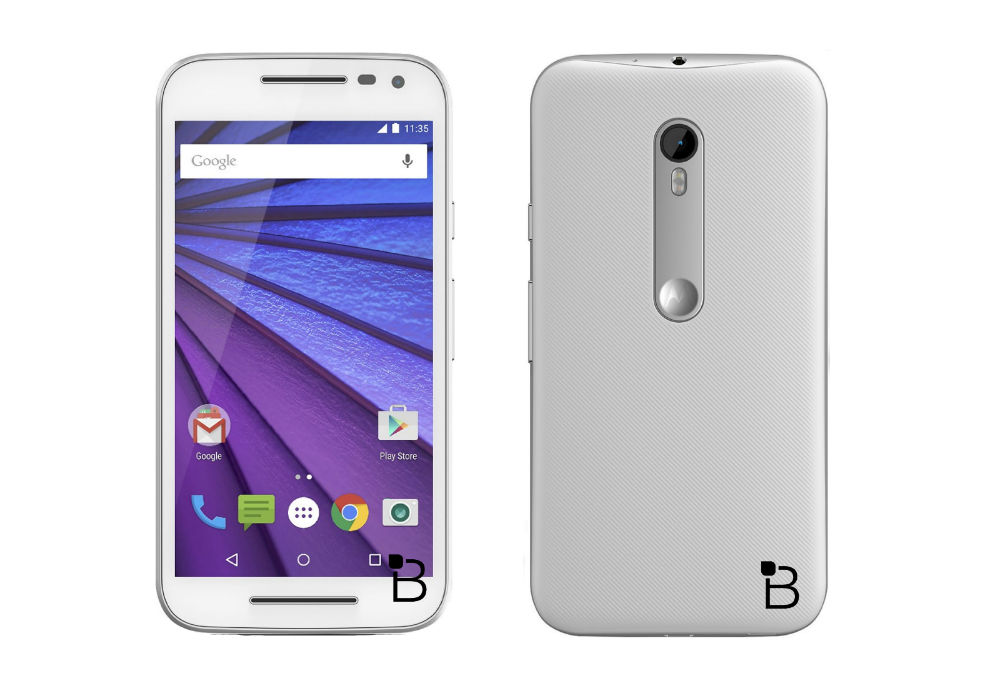
Motorola Moto G 3rd Gen Specifications.

The powerful Moto G3 now available for sale o flipkart at just  Rs.12,999 and 11,999. in two colors Black and white the phone has really powerful Specifications. And The best thing is it is water resistant up to one meter and for 30 minutes. All this in a very low price. Along with great deals on Flipkart. Detailed Specs given below. 


NETWORK
Technology
GSM / HSPA / LTE

LAUNCH
Announced 2015, July

Status Available. Released 2015, July

BODY
Dimensions 142.1 x 72.4 x 11.6 mm (5.59 x 2.85 x 0.46 in)
Weight 155 g (5.47 oz)
SIM Optional Dual SIM (Micro-SIM, dual stand-by)
IPX7 certified - water resistant up to 1 meter and 30 minutes

DISPLAY
Type IPS LCD capacitive touchscreen, 16M colors
Size 5.0 inches (~67.0% screen-to-body ratio)
Resolution 720 x 1280 pixels (~294 ppi pixel density)
Multitouch Yes
Protection Corning Gorilla Glass 3

PLATFORM
OS Android OS, v5.1.1 (Lollipop)
Chipset Qualcomm MSM8916 Snapdragon 410
CPU Quad-core 1.4 GHz Cortex-A53
GPU Adreno 306

MEMORY
Card slot microSD, up to 32 GB
Internal 8 GB, 1 GB RAM
16 GB, 2 GB RAM

CAMERA
Primary 13 MP, 4128 x 3096 pixels, autofocus, dual-LED (dual tone) flash
Features Geo-tagging, touch focus, face detection, panorama, auto-HDR
Video 1080p@30fps, HDR
Secondary 5 MP, auto-HDR

SOUND 
Alert types Vibration; MP3, WAV ringtones
Loudspeaker Yes
3.5mm jack Yes
COMMS WLAN Wi-Fi 802.11 b/g/n, hotspot

Bluetooth v4.0, A2DP, LE
GPS Yes, with A-GPS, GLONASS, Beidou
Radio FM radio

USB microUSB v2.0, USB Host

FEATURES
Sensors Accelerometer, proximity
Messaging, SMS(threaded view), MMS, Email, Push Email, IM
Browser HTML
Java No
 Active noise cancellation with dedicated mic
- MP3/AAC+/WAV/Flac player
- MP4/H.264 player
- Photo/video editor
- Document viewer

BATTERY
Non-removable Li-Ion 2470 mAh battery
Stand-by
Talk time

COLORS
Black, White


The above information may not be 100% Correct.